Text to Audio
With Text to Audio, you convert text into an audio file. This is useful for scripts, explainer videos, listening material, read-aloud texts, and language education.
Getting started from the dashboard
On the dashboard, select Text to Audio under the input field. This is the button with the chat icon, an arrow, and the sound wave icon. The larger input field for the text you want to be spoken then appears.
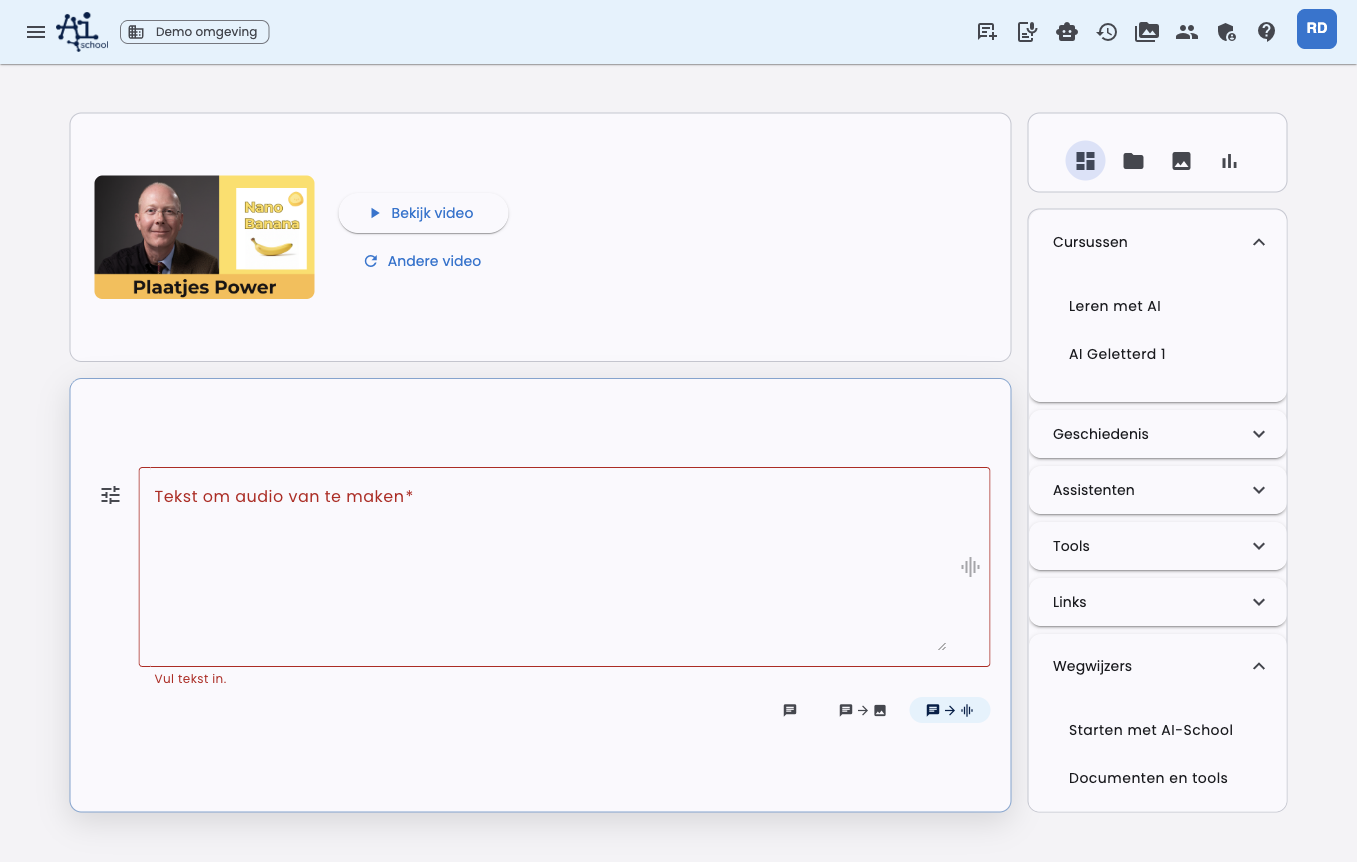
The input field becomes bigger so you can comfortably enter longer scripts. You can then fill in the text and generate audio.
Settings
Through the settings button next to the input field you can adjust the speech settings.
| Setting | Description |
|---|---|
| Model | Choose the text-to-speech model. |
| Language | Choose the language in which the text should be spoken. |
| Voice | Choose a voice suitable for the chosen language. |
| System prompt | Provide instructions for pronunciation, tone, tempo, accent, and special terms. |
| Style reference | Add extra cues about the desired speaking style. |
The voice list is filtered by the chosen language. If a voice is intended for certain languages only, you will see that language listed with the voice.
Pronunciation and style
The system prompt controls how the voice should sound. You can indicate, for example:
- that the speaker should sound like a native Dutch speaker;
- that words such as AI, AI-School, ChatGPT, OpenAI, and Gemini may be pronounced in English;
- that Claude should be pronounced as a French name;
- or that the tone should be calm, warm, formal, informal, low, or energetic.
When you choose another language, AI-School adjusts the default instructions to that language.
Save and restore
You can save your settings to your account. AI-School will remember, among other things, the model, language, voice, and system prompt. With Restore defaults you remove these saved preferences.
Result
After generation, the audio file appears directly in the chat. You can play it there with the audio player and download it with the download button.
During generation, the input form is temporarily disabled to prevent multiple audio generations from running simultaneously.
