Text to Image
With Text to Image, you create images directly from the dashboard based on a description. This is a direct input mode and therefore does not use automatic tool selection in the chat.
Starting From the Dashboard
On the dashboard, choose Text to Image below the input field. This is the button with the chat icon, an arrow, and the image icon. The larger input field for your image description then appears.
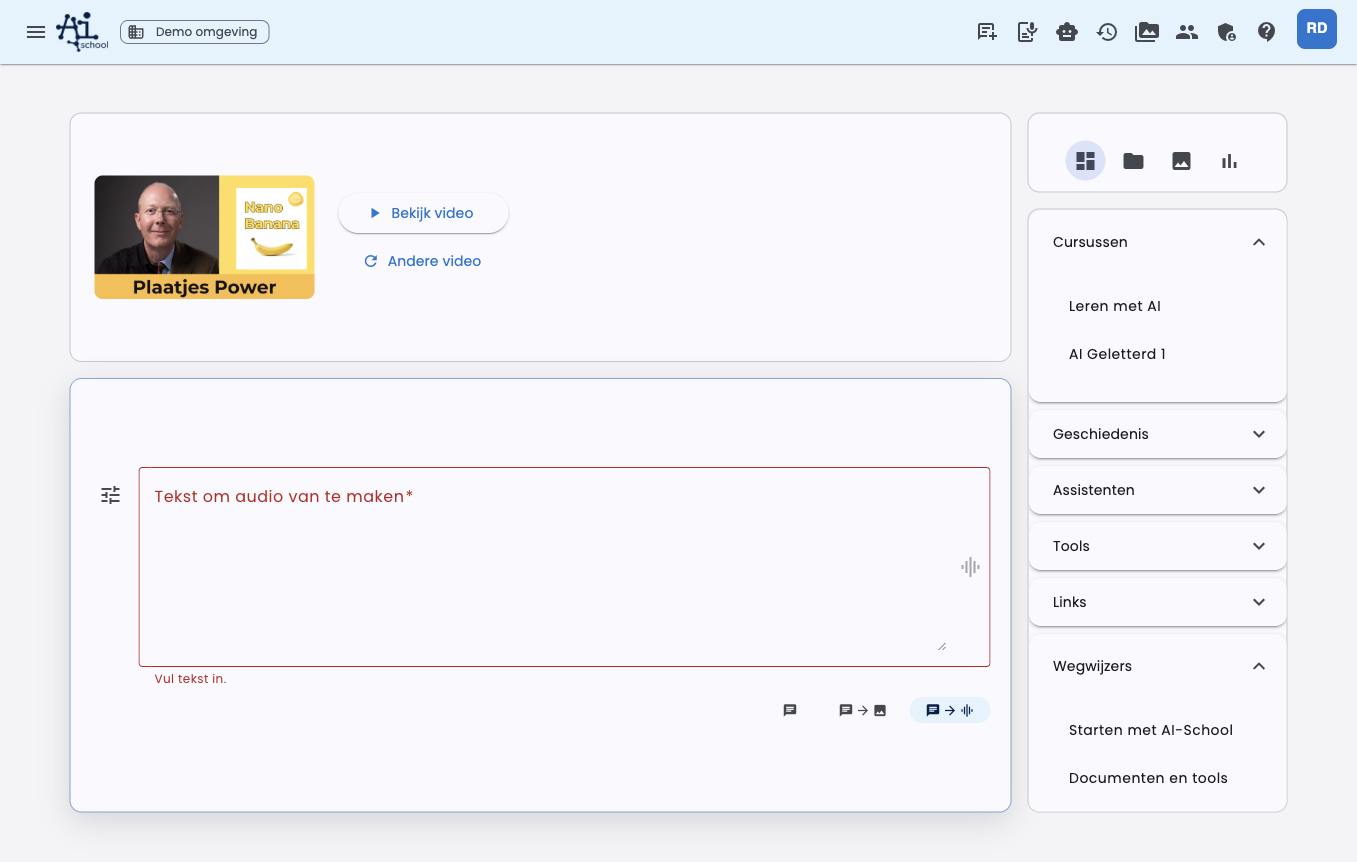
The input field becomes larger, so you can write a detailed image description. The rest of the dashboard remains available, but the input gets more space.
Then write what you want to create, for example:
Create a calm illustration of a student using AI to work on a report.
Use a light, friendly style and little text in the image.
Settings
Use the settings button next to the input field to adjust image generation.
| Setting | Explanation |
|---|---|
| Model | Choose the image model you want to use. |
| Size | Choose Automatic, Square, Landscape, or Portrait. Automatic is the default. |
| Style | Choose, for example, photorealistic, illustrative, editorial, clean design, or playful. |
| Variants | Choose how many images you want to create: 1, 2, 3, or 4. By default, 2 variants are created. |
| Color preference | Enable color preferences and add your own colors or brand colors. |
You can save these settings as your personal default. With Restore default, you remove your saved image settings.
Automatic Size
The size is set to Automatic by default. AI-School then looks at your prompt and, in an existing chat, at relevant earlier messages. If you ask for a poster, portrait can make sense. If you ask for a presentation slide, landscape may be better.
If you choose Square, Landscape, or Portrait yourself, that choice remains leading.
Adding Inspiration Images
You can add images as inspiration. The AI uses these images as visual direction for style, color, composition, or subject. The result is still a new image.
Use inspiration, for example, when you want a new image to have the same atmosphere or style as an earlier generated image.
Editing Images
You can also add an image to edit. Then describe what needs to be changed.
Examples:
- "Make the background lighter and calmer."
- "Remove the text and keep the composition."
- "Make this image suitable for a lesson presentation."
In edit mode, you do not choose an aspect ratio. AI-School then does not send a manual size, so the model can preserve the dimensions and proportions of the source image.
Result
The generated images appear directly in the chat. You can open, download, and reuse them as inspiration or as a source for an edit.
Difference From the Create Images Tool
The Create Images tool is used by the AI from a regular chat when you ask for an image. Text to Image is more direct: you deliberately choose image mode and set the model, size, style, colors, and reference images yourself.
Editing subsequent image versions
In image mode, OpenAI and Gemini automatically edit the previous image version when you send a follow-up. Select an older version to edit that image; the version used as the source appears above the input field. A manually selected edit image takes priority. After a successful generation, the new image becomes the source for the next edit. Flux/BFL and Stability AI do not edit images and receive no automatic source image. Start a new chat to create an independent new image.
