Setting Up the Environment
Each board receives its own environment within AI-School. This environment must be selected before login options are displayed.
Environment Setup
Setting up an environment is typically done at the board level. Multiple schools can fall under this level. However, a large board may want to make a further division between, for example, primary education, special education, and secondary education. In such cases, multiple environments can be set up for the board.
Each environment receives its own database and account silo within Google Cloud. We use the multi-tenant feature of Google Identity Platform and the multi-database feature of Google Cloud / Firebase.
After registration, AI-School will take the following steps:
- Creating a new tenant on Google Identity Platform
- Linking the desired login methods to this tenant
- Optionally linking a Microsoft Entra Application to the tenant
- Creating a new database within Google Cloud
- Filling in the board's details
- Setting up API Keys for various integrations
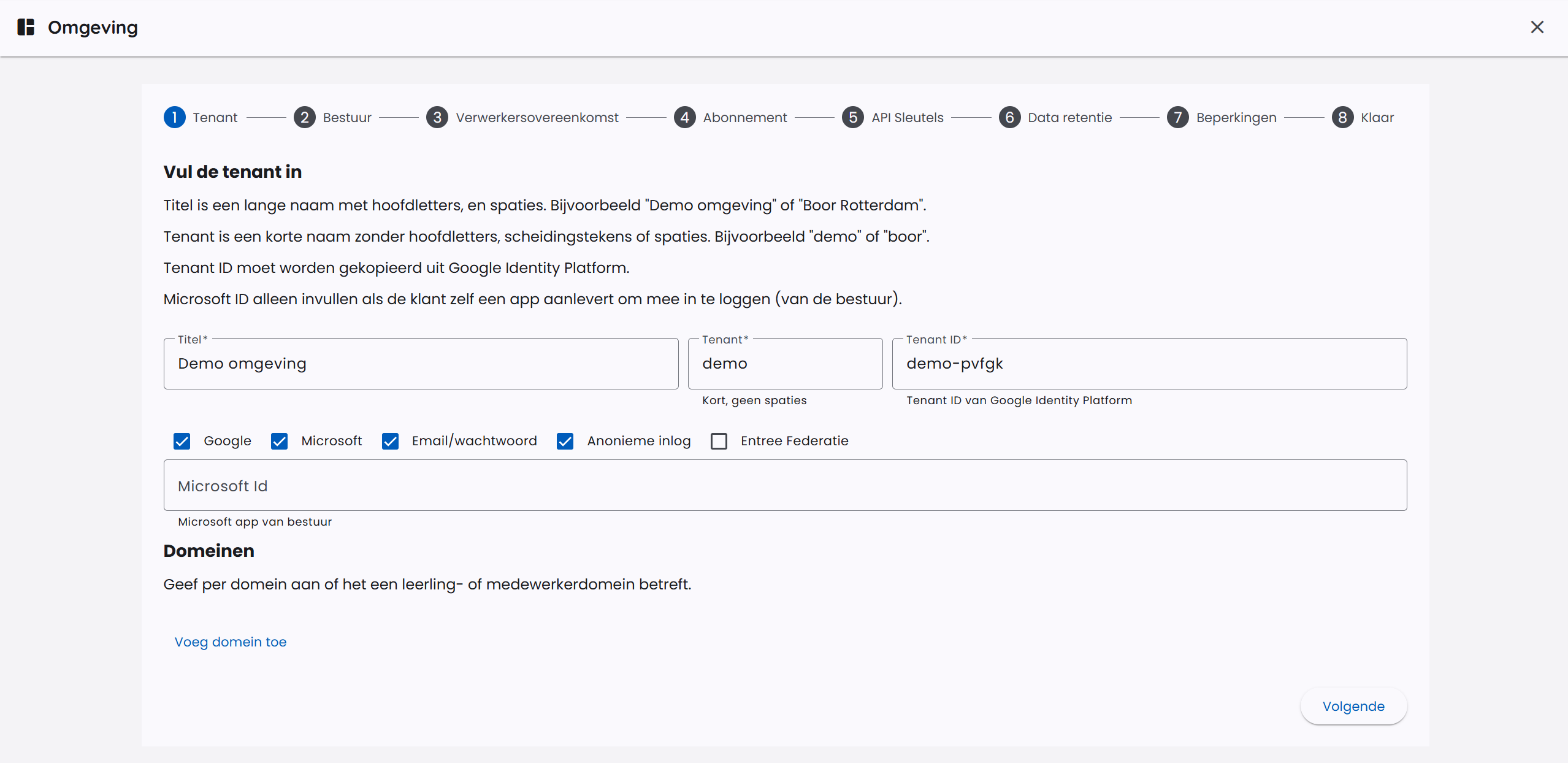
Basic board information is filled in.
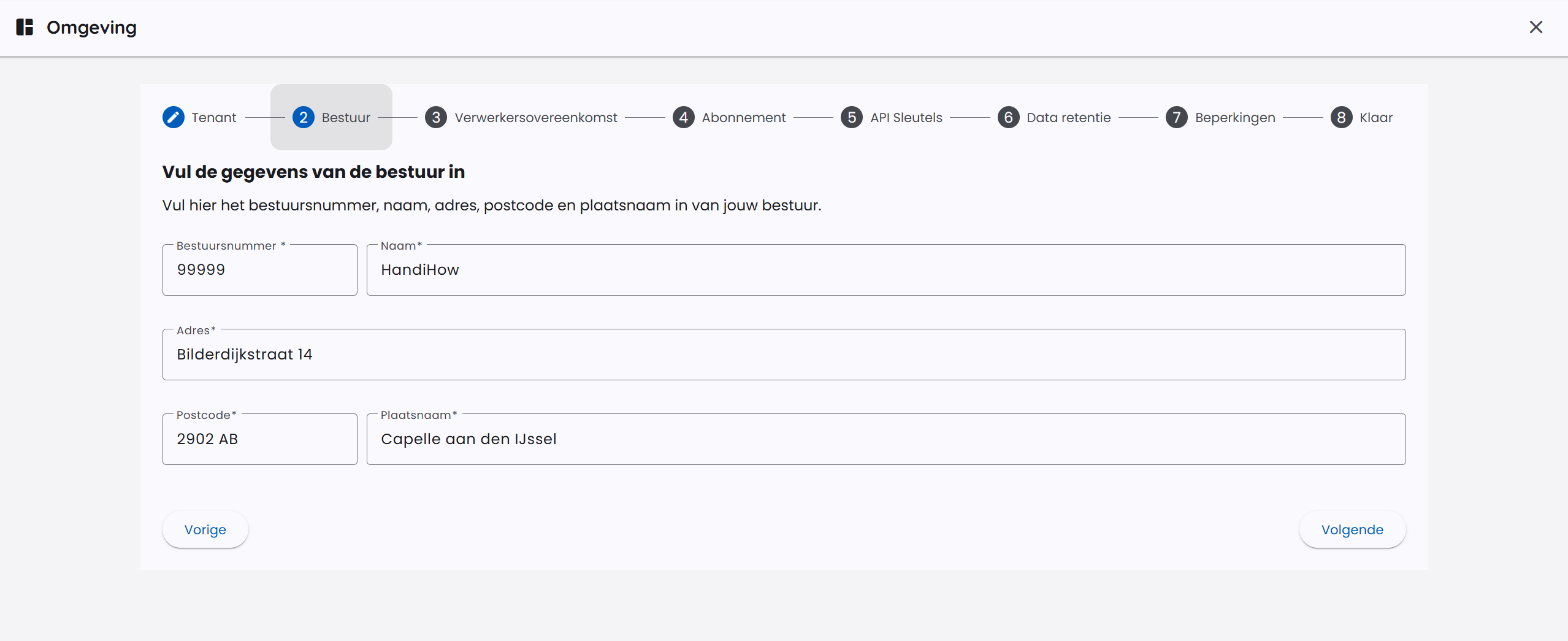
API keys are set up for:
- OpenAI: GPT models and GPT Image models
- Google Cloud Vertex AI: Gemini models, Nano Banana and Gemini TTS
- Anthropic: Claude models
- Mistral AI: Mistral and Voxtral models
- Black Forest Labs: FLUX image models
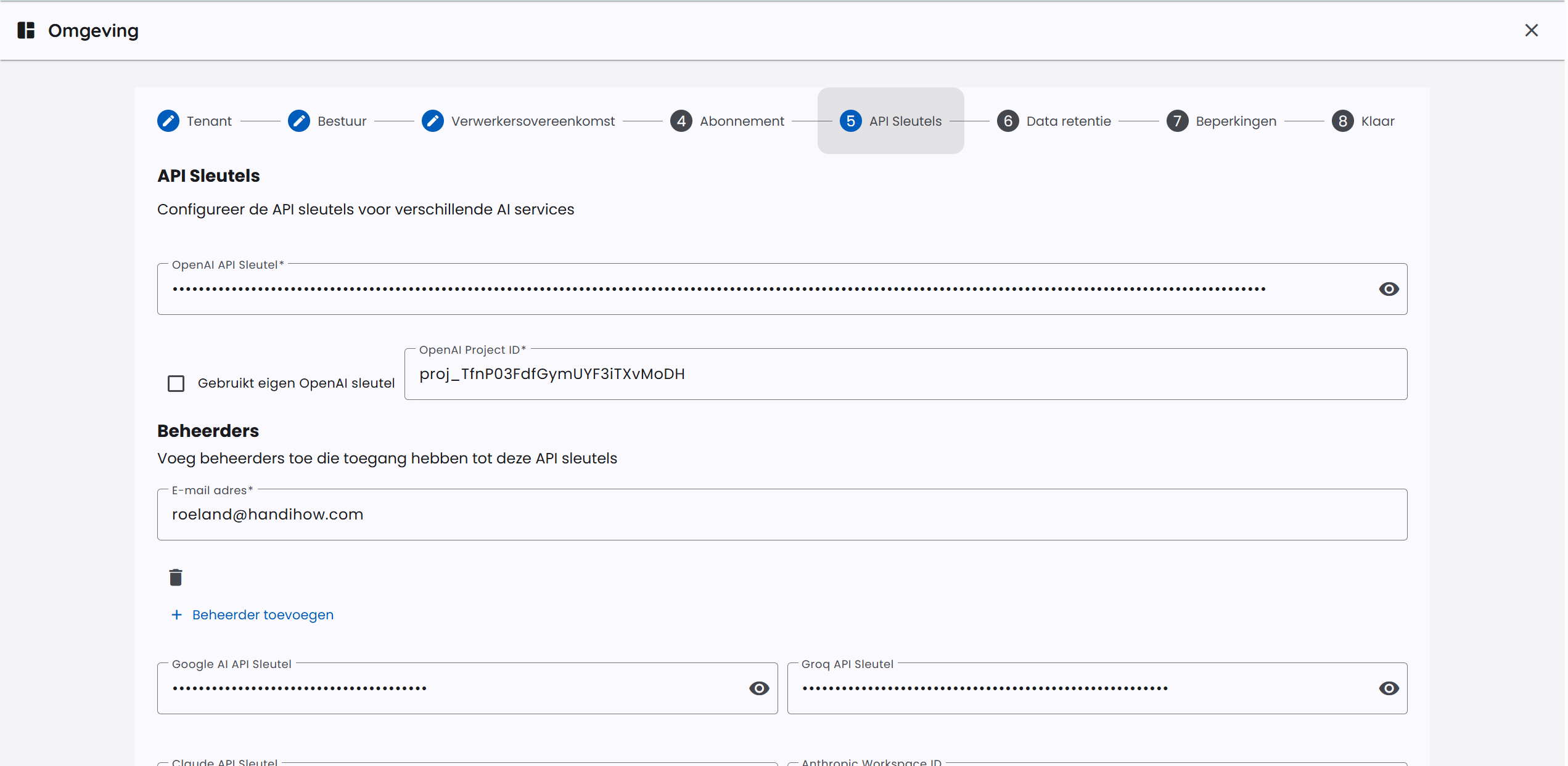
The costs of usage are also booked on these API keys. For large accounts, we offer the possibility of providing your own API keys. When supplying your own API keys, we can offer significant discounts.
Setting Up User Migration
When creating or editing an environment, you can configure whether users may migrate their own data from an earlier environment. This setting is Off by default.
The available options are:
- Off: users do not see a migration option in their account.
- Demo: users can transfer data from the demo environment.
- Schoolplein: users can transfer data from Schoolplein.
When migration is enabled, the user sees the Migration tab in Profile. AI-School checks there whether an account exists for the same user in the configured source environment. Only when data is found can the user start a migration.
When starting the migration, the user chooses which parts should be transferred. Migration is intended for personal data, chats, chat messages and files. Staff and student data is not migrated.
After a migration has been completed, the same user cannot start the migration from that source environment again. The migration runs in the background, so the user does not have to keep the page open.
AI-School Sets Up the Environment
Initially, AI-School will set up your environment basically after mutual consultation. At least 1 board admin account will be transferred. This board admin can modify all environment settings.
This board admin is then responsible for further setting up the environment, such as creating additional admin accounts for schools.
Setting Permissions
Setting permissions is also part of the basic data settings. Setting Permissions is covered under the Privacy section. We refer to the relevant article.
Setting Domains
Setting domains is also part of the basic data settings. With domains, you can whitelist domains so you don't need to enter accounts via CSV lists or manually. Users with the correct domain are directly linked to a school and become staff or student based on the domain name. We refer to the relevant article.
